Print your image across multiple A4 or Letter sheets. Choose the poster size, download the PDF, then print, trim and assemble at home.
Currently free
No signup
Processed on your device
Images stay in your browser
YOUR POSTER
Your poster
Finished size
Paper sheets
Print quality estimate
Effective image PPI
Low150+ PPI reference300+
PDF options
PDF options
HOW TO USE
How to Print a Large Image on Multiple Pages
Print a large image on A4 or Letter paper with your home printer. This eight-step guide uses a four-sheet layout (2 × 2) with 5 mm overlap.
Materials checklist
High-resolution original image
Printer paper matching your settings (quantity shown in preview)
Printer supporting your selected paper size
Ruler
Scissors or craft knife
Transparent tape
Cutting mat when using a knife
Check paper size, ink and paper feed before starting. Start with plain paper; use a cutting mat with a knife.
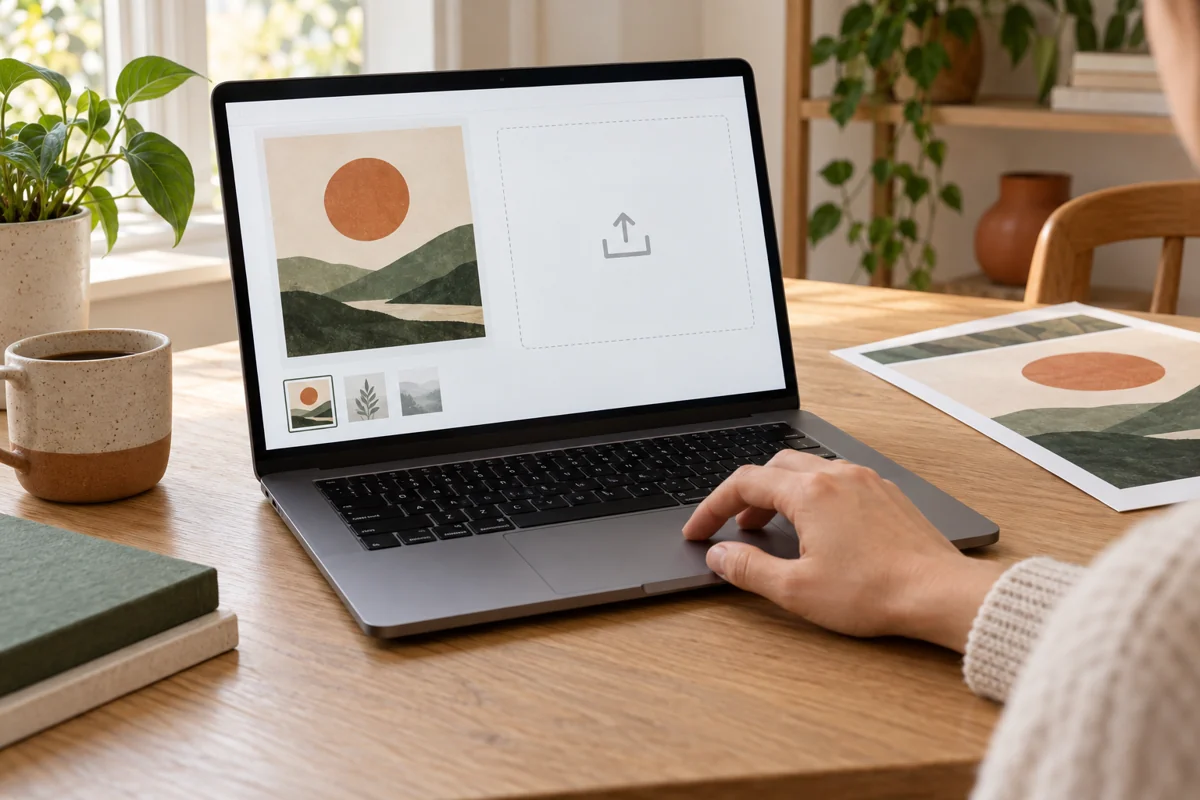
Upload your image
Photorealistic generated illustration; follow the text and your actual PDF.
Open the tool and choose or drop an image. Clipboard paste and public direct image URLs are also supported.
Check orientation, proportions and image quality. Use the original rather than a compressed messaging thumbnail.
Multiple images enter a queue for separate setup and export; they are not automatically combined into one poster.
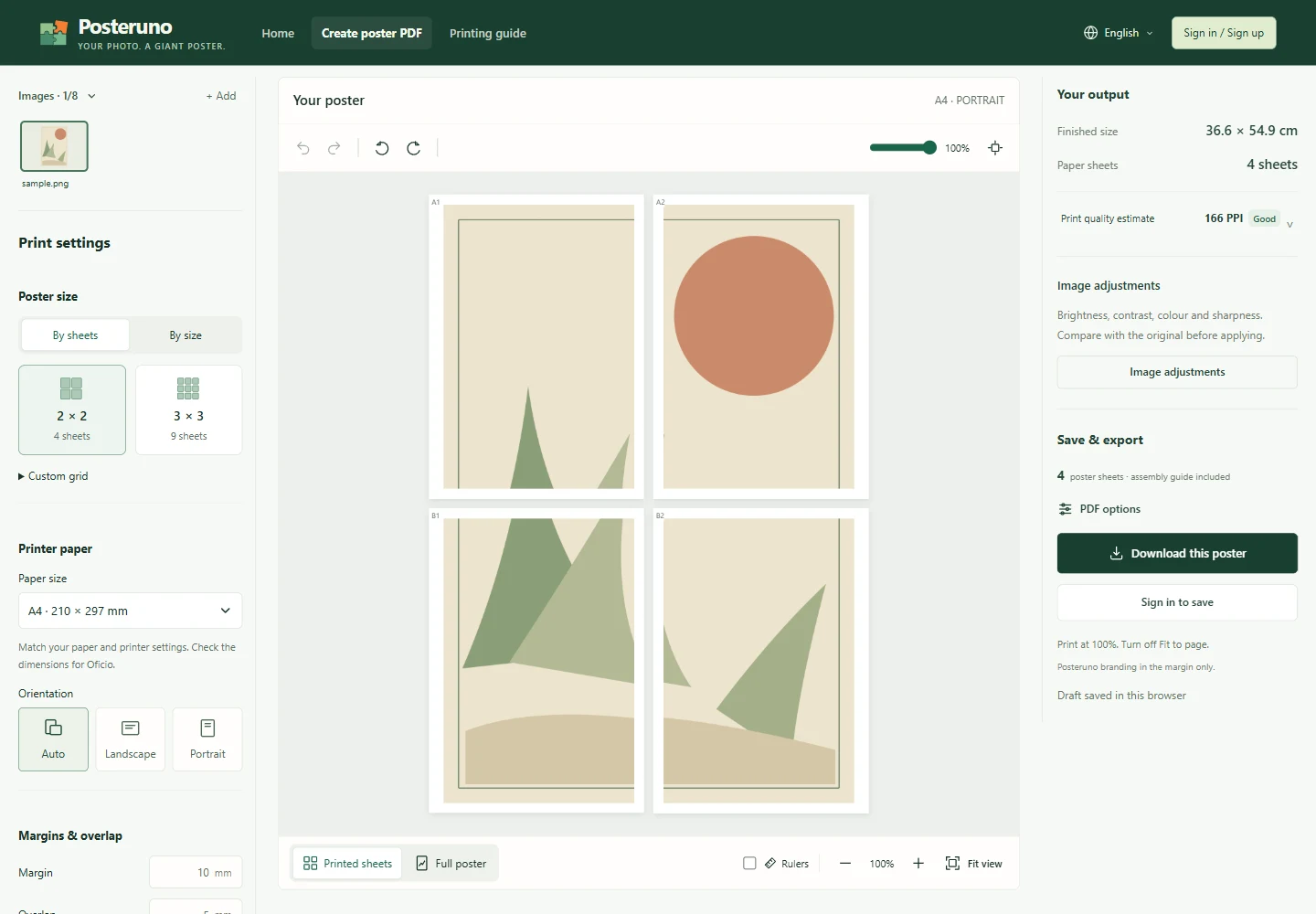
Print an image on 4 pages (2 × 2 example)
Actual editor screenshot · Open full size
Choose A4 or Letter to match your printer, then select a 2 × 2 layout for four poster sheets. A3, Legal and other layouts are also available.
Use 5 mm overlap and the default margins for this example. Overlap repeats artwork to align adjoining sheets; margins leave room for the printer’s unprintable edges.
Check the finished image dimensions and the four-sheet preview before downloading. The PDF may include an additional instruction page; do not count it as a poster sheet.
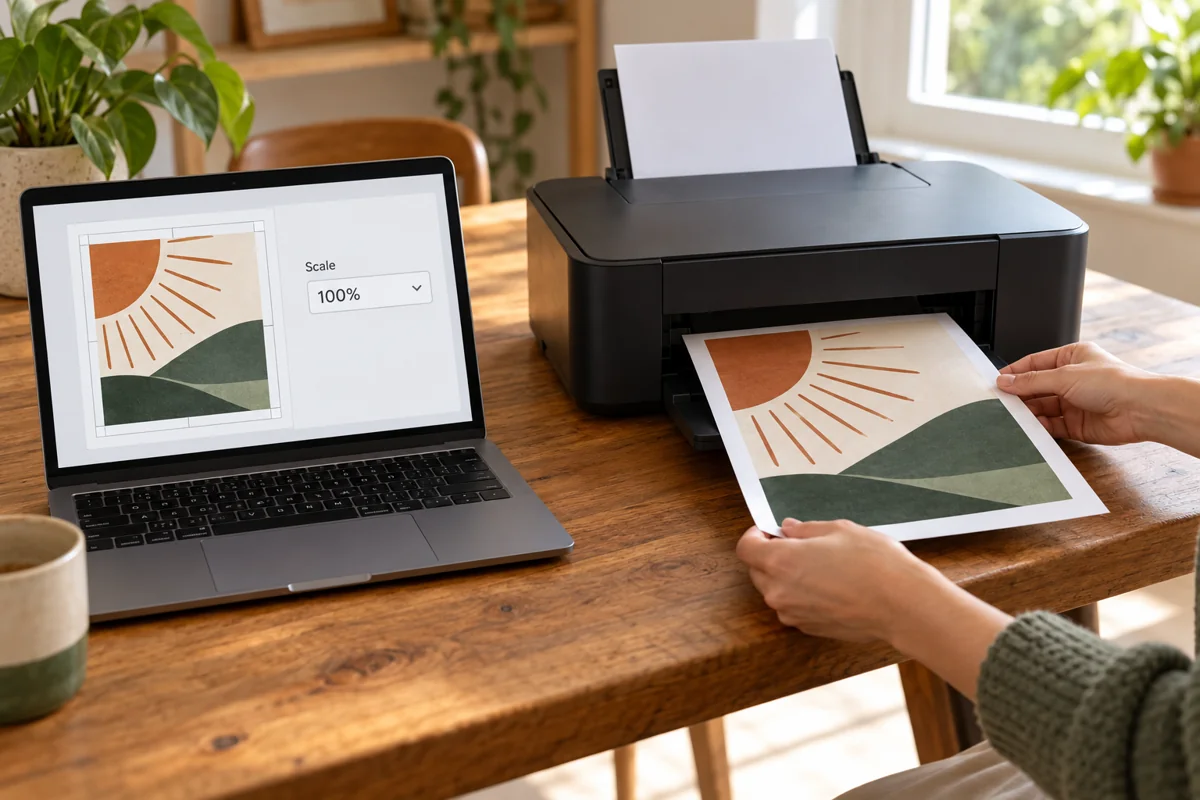
Download, then print at 100%
Photorealistic generated illustration; follow the text and your actual PDF.
Keep PDF cutting guides enabled and download. Identify poster pages and any instruction page before printing.
In your PDF reader match the PDF and actual paper size, choose Actual size / 100%, single-sided printing and the PDF orientation. Disable Fit to page and automatic scaling.
Print one test page first and measure its calibration line if present. Print the remaining tiles only after scale is correct. Printer dialogs vary.
See the exported result: View sample PDF (A4 · 5 pages)1 assembly guide + 4 poster sheets, using the built-in sample image.
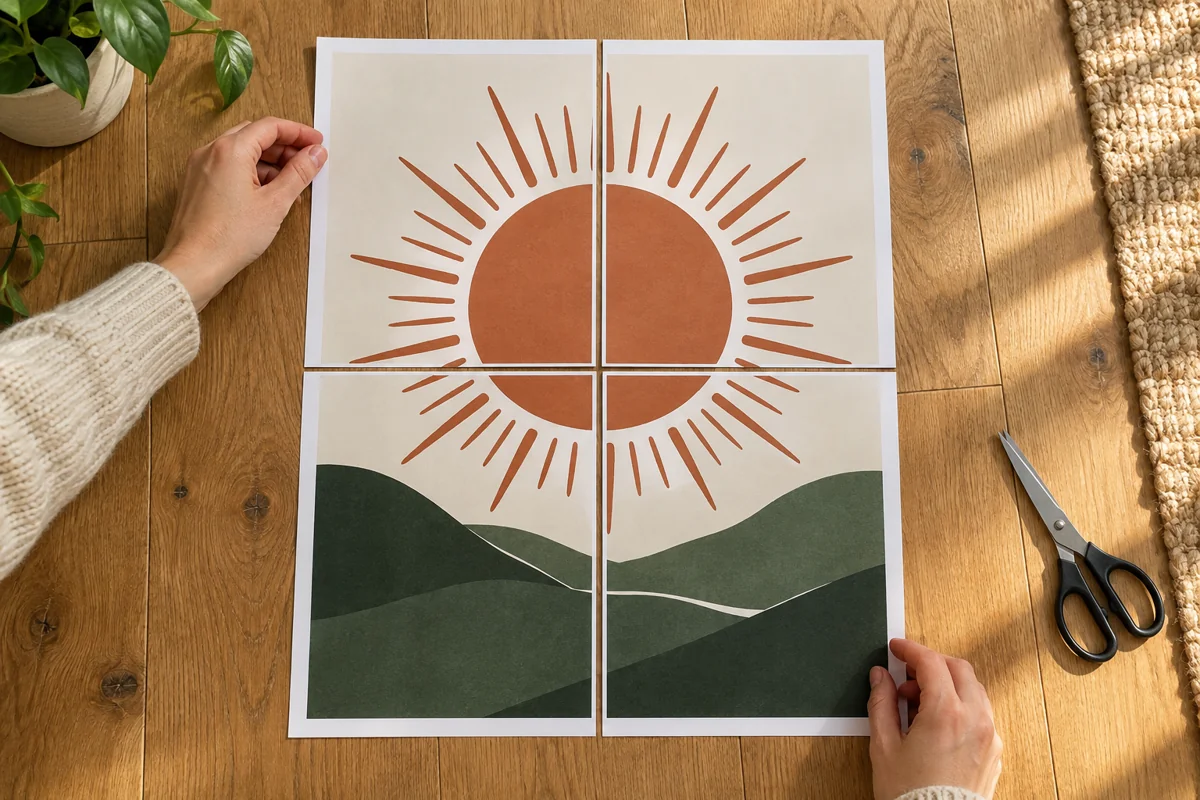
Lay out the numbered sheets
Photorealistic generated illustration; follow the text and your actual PDF.
Lay four sheets face up on a clean dry floor or large table. Do not tape yet.
Place A1 and A2 in the top row; B1 and B2 below. Tile labels may differ from PDF page numbers.
Check direction and missing or duplicate sheets. Untrimmed margins and overlap mean the loose sheets will not yet form a seamless picture.
Trim white margins; keep the image
Photorealistic generated illustration; follow the text and your actual PDF.
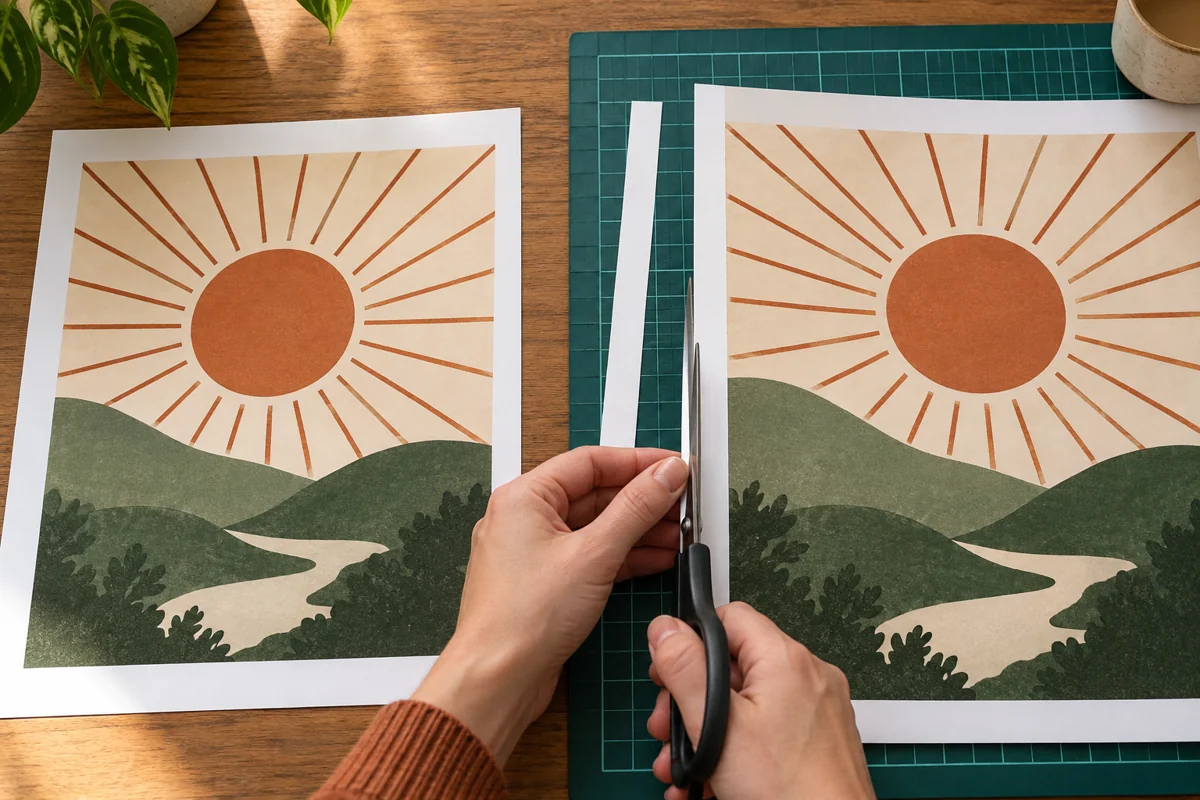
Start with A2: remove only its left blank margin and retain the repeated image strip. Follow your actual PDF guides, not millimetres inferred from a generated photo.
Lay the repeated artwork on A2 over its matching part on A1. Trim the top blank margin on B1, and top plus left margins on B2.
Align each row, then join the rows. A 5 mm overlap is repeated artwork to retain. With zero overlap, trim joining margins and butt image edges together.
Tape from the back
Photorealistic generated illustration; follow the text and your actual PDF.
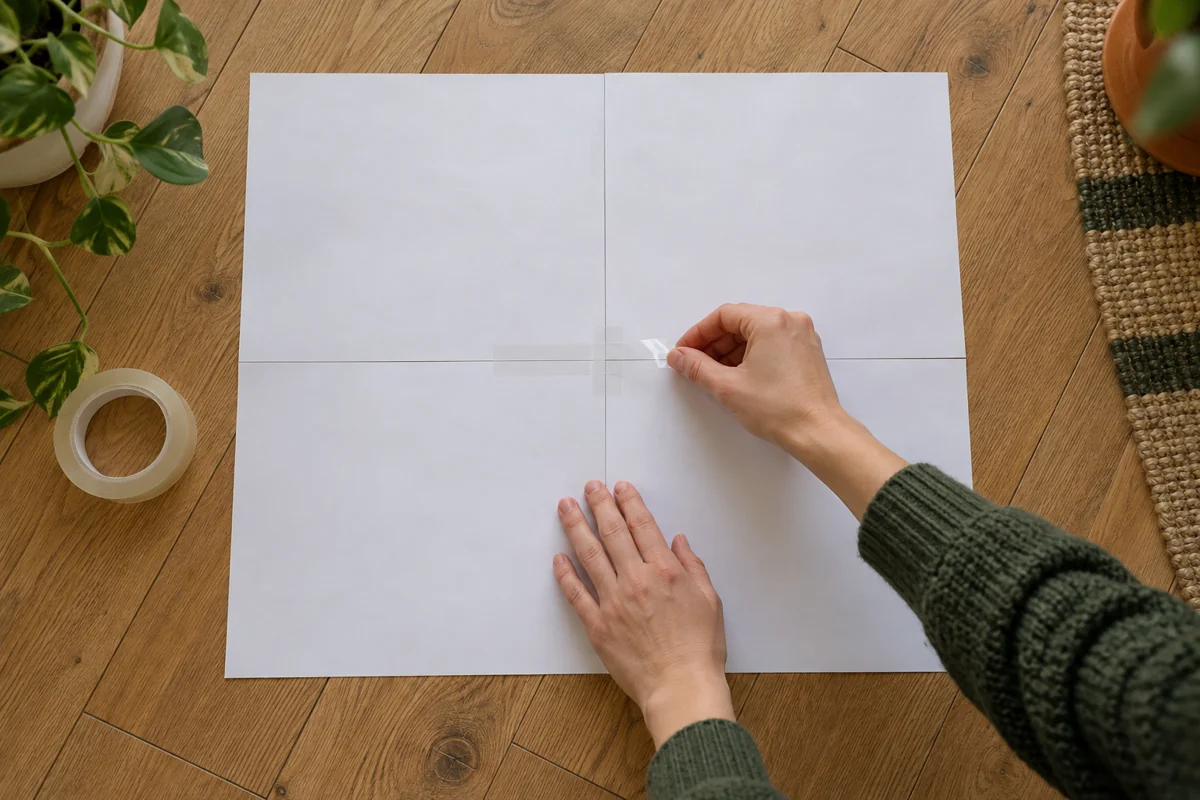
Check joins face up, secure lightly and carefully turn the assembly over. Two flat boards can help support the sheets.
Apply short strips of tape across the joins on the back, working from the centre outward without stretching the tape.
Turn face up and check for shifts, gaps or repeated features before reinforcing. Trim outer borders last.
08 · Check the result before hanging
Photorealistic generated illustration; follow the text and your actual PDF.
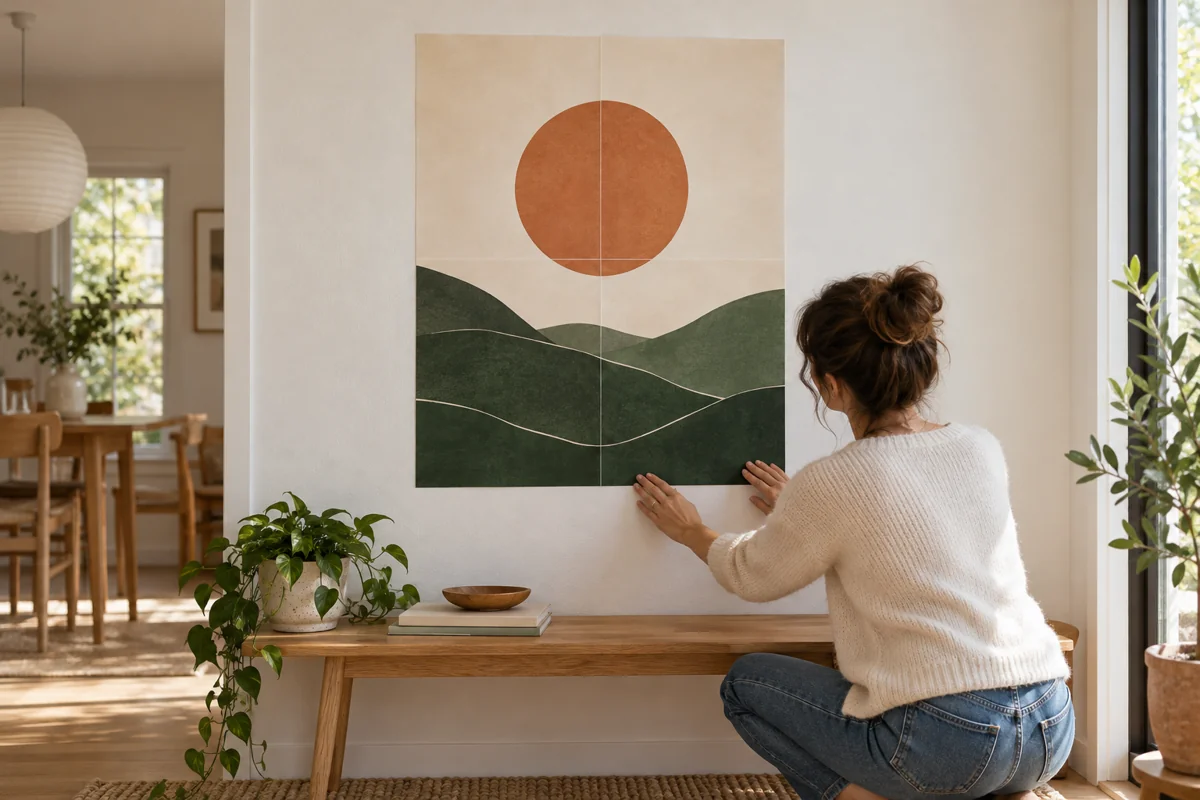
Check corners, seams and the outside edge with the poster flat. Lift local tape and realign if required.
Choose removable fixings appropriate to the wall and test an inconspicuous spot. Adhesives are not safe for every painted or papered surface.
Keep the original and PDF for reprints. Results depend on paper, printer, ink and source quality. This tutorial has not been physically print-tested.
Printing and assembly questions
Can I use A4 or Letter paper?
Yes. Choose a paper size supported by your printer in the editor and match it in the PDF print dialog. Export again if you change paper size; do not scale an A4 PDF onto Letter.
Why do the images not line up?
Check sheet positions, orientation and print scale. Keep the repeated image in the overlap, trim one adjoining white border and align matching details before taping. Do not align only the outer paper edges.
Why is the printed size wrong?
Turn off Fit to page and other automatic scaling; choose Actual size or 100%. Measure the 100 mm test line first. If it is wrong, check both your PDF reader and printer driver settings.
What is the difference between margins and overlap?
Margins leave room for the printer’s unprintable edges. Overlap repeats image details on adjoining sheets to help alignment. With 0 mm overlap, trim both adjoining white borders and butt the image edges together.
Can adjustments fix a blurry enlarged image?
Use a higher-resolution original or reduce the final poster size. Quality estimates and adjustments cannot recover real detail missing from the source. Print a test sheet first.
How can I reprint just one sheet?
Select its PDF page number in your PDF reader and use the original print settings. A1 and A2 are assembly positions; they may not match PDF page numbers when an instruction page is included.
Ready to make your poster?
Choose an image, check the dimensions and sheet preview, then download your printable PDF.
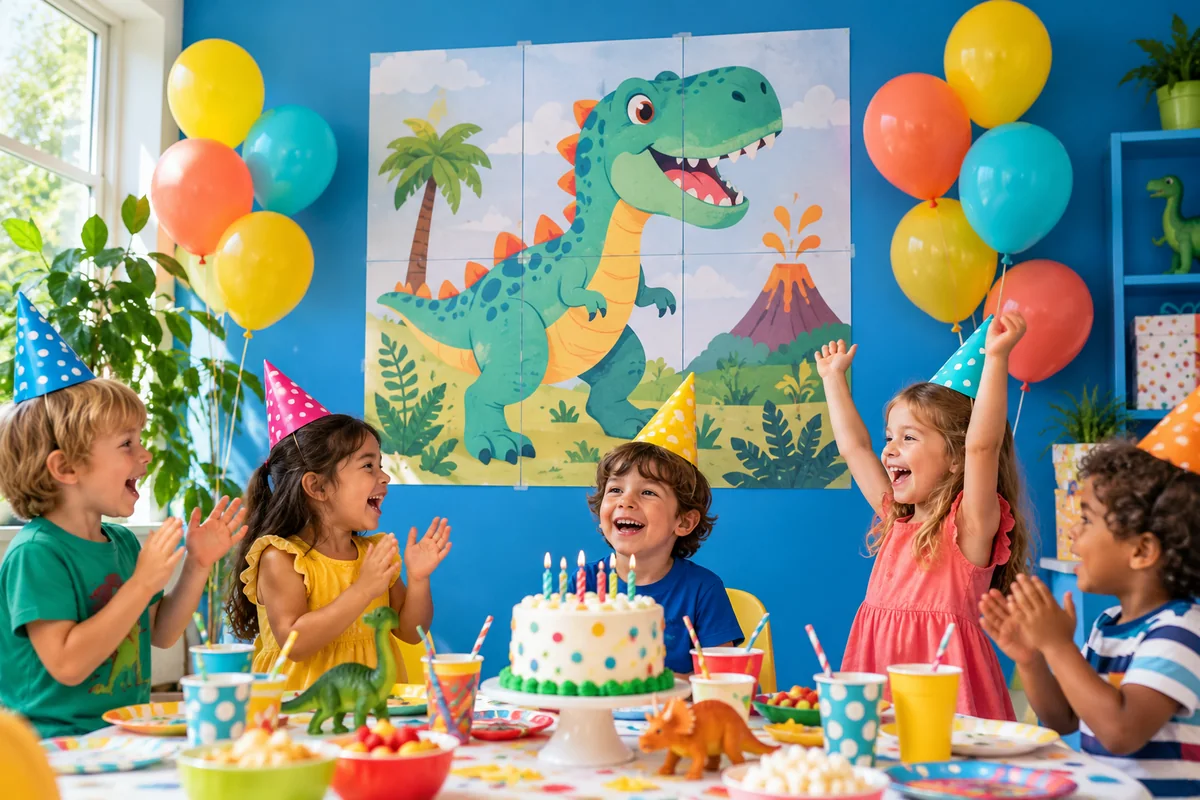
Wall art, birthday decorations, classroom displays and photo gifts.
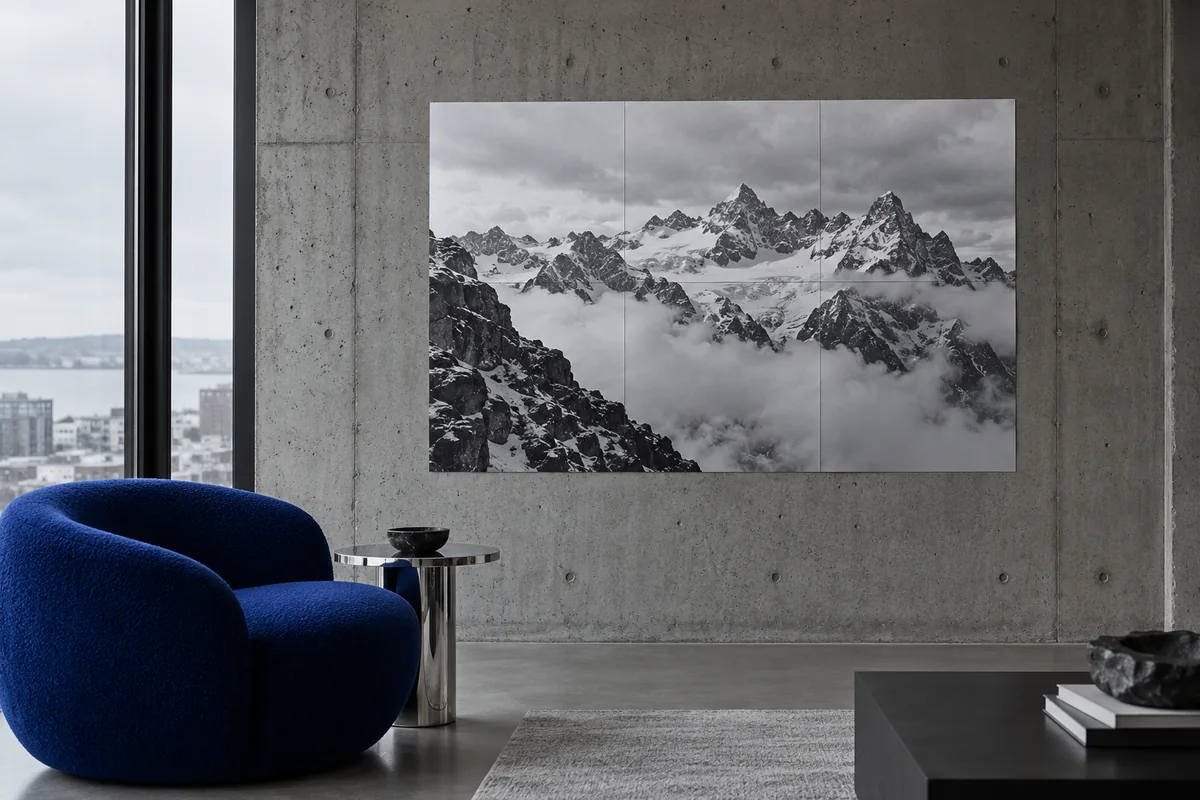
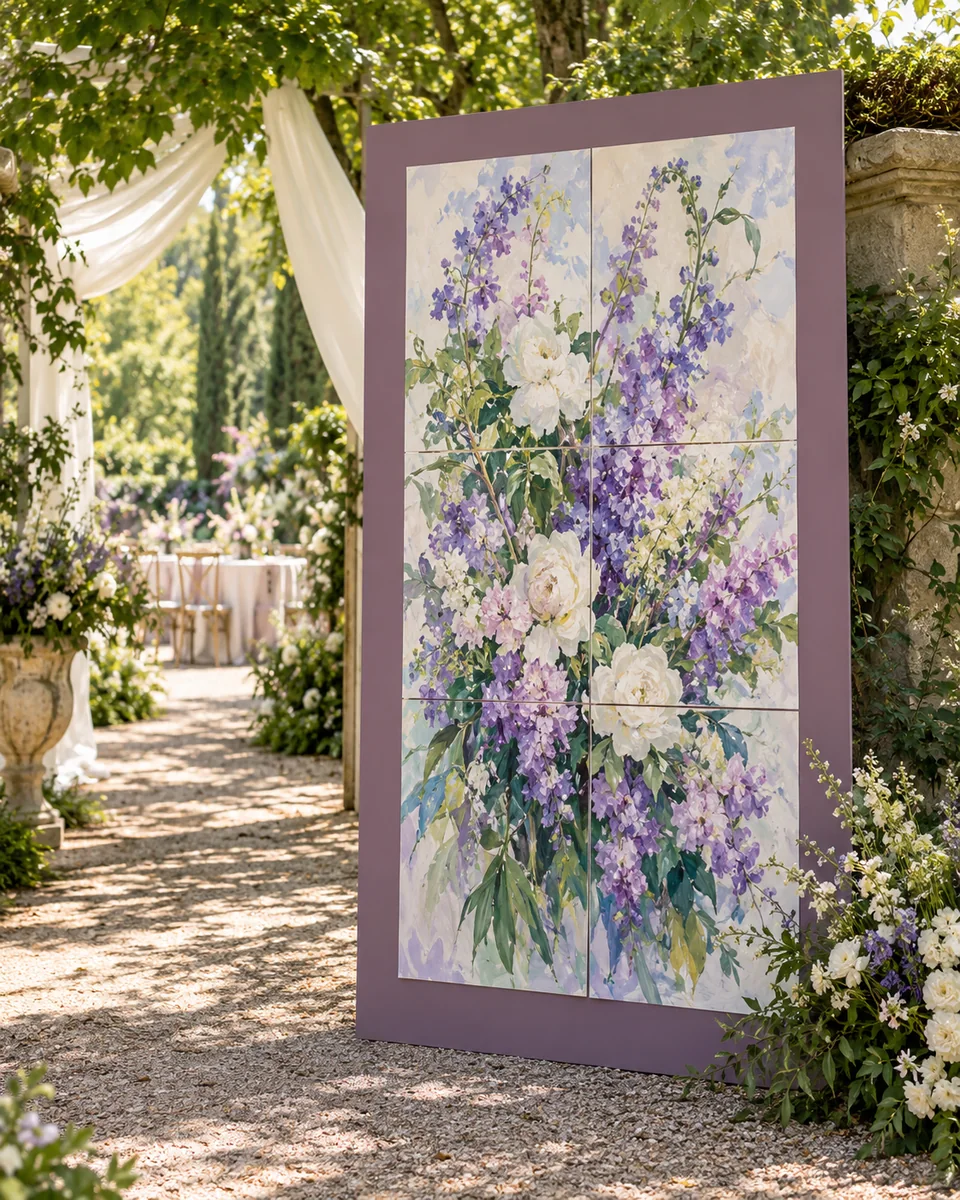
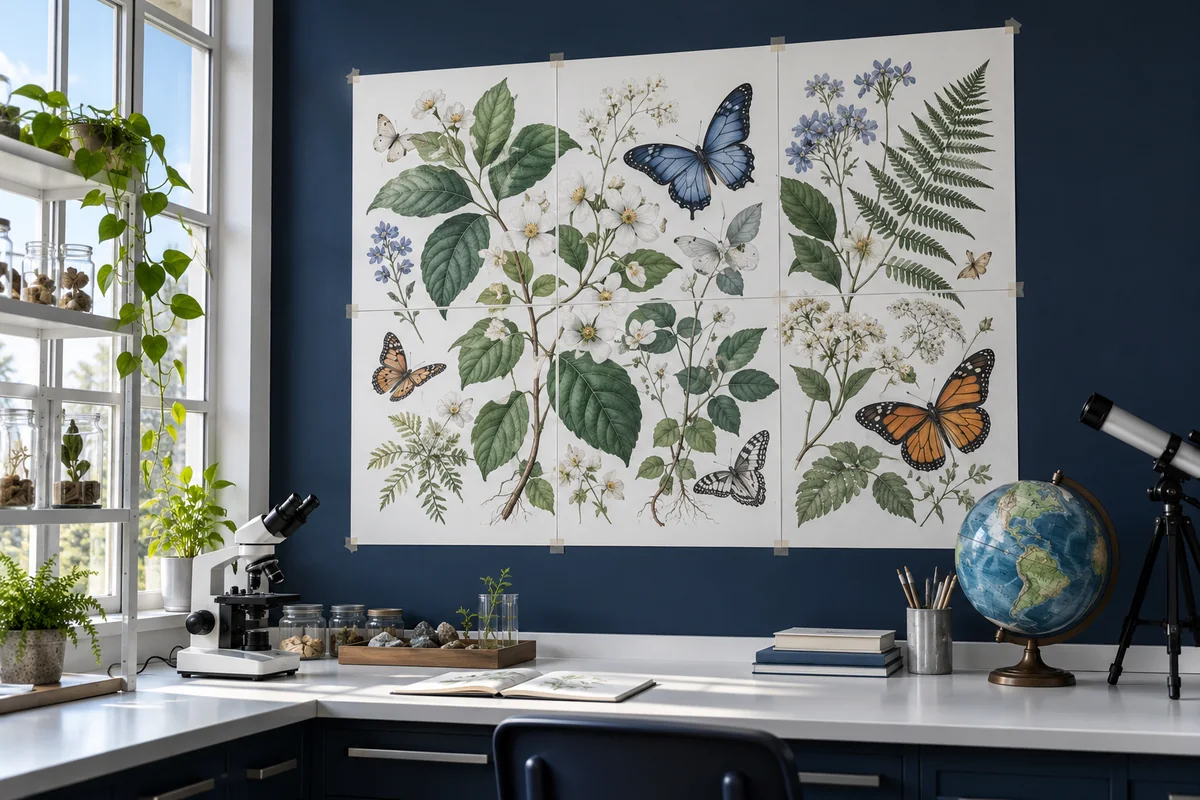
A colourful dinosaur birthdayBring the solar system into classA vintage woodland reading nookBlack-and-white mountains, modern homeFlowers for a garden weddingA handmade photo giftA sunset for your dorm roomA nature study cornerColour after darkBold art for a working studio
Illustrative scenes
Common questions
Paper sizes, print quality and how your images are handled.
How can I print a large poster with my home printer?
Upload your image, choose the paper and poster size, then preview and download a multi-page PDF. This is a digital file with the image split across printable sheets: print it with your own printer, then trim, align and join the pages. We do not ship physical posters. Open the poster editor to get started.
Can I print a picture on 4 sheets or make a larger poster?
Yes. Choose a 2 × 2 layout to split your picture across 4 sheets, or set more rows and columns or a finished size. The actual poster size depends on paper, orientation, margins and overlap; check the editor preview. The PDF can include an extra assembly guide page.
What paper sizes are supported? Do I need a special printer?
Choose A4, Letter, A3 or Legal. You do not need a large-format printer: a home inkjet or laser printer that supports your chosen paper is enough. Match the paper size in the editor, printer tray and PDF print dialog. Print at actual size (100%) and turn off “Fit to page”. See the print settings guide.
Which image formats can I use? Can I upload iPhone HEIC photos?
You can use JPG, PNG, WebP, AVIF, BMP and HEIC/HEIF, including many iPhone photos. HEIC files are converted in your browser before editing. Use a still image up to 20 MB; if your file cannot be read, export it as JPG or PNG and try again.
Will my photo look blurry when printed as a large poster?
Enlarging an image can make blur more visible, especially up close. Use the highest-resolution original you have. Check the estimated print quality in the editor, reduce the poster size if needed and print one test sheet first.
Is making and downloading a poster PDF free? Do I need to log in?
The current version lets you create and download poster PDFs for free, without signing up or logging in. Sign in to manage projects saved in this browser; signing in does not enable cloud sync. You need your own printer, paper and ink.
Are my images uploaded to or stored on a server?
Local images are processed in your browser and are not uploaded to a Posteruno image server. Saved projects stay in this browser on this device; signing in does not sync them to the cloud. Clearing browser data can remove them, so keep your originals and downloaded PDFs. Importing a URL requests the file from its source, which may receive normal connection information.